MyJUWEL APP


SmartFeed AppControl
Scopri il SmartFeed AppControl – il tuo nuovo alimentatore automatico premium con controllo intuitivo tramite app per una soluzione di alimentazione moderna e conveniente!
Caratteristiche
- Controllo globale: Mantieni il pieno controllo sull'alimentazione dei tuoi pesci, ovunque ti trovi, grazie al controllo remoto tramite l'app MyJUWEL.
- Notifiche per basso livello di cibo: Ricevi notifiche istantanee tramite l'app per garantire che i tuoi pesci non rimangano mai senza cibo.
- Opzioni di alimentazione flessibili: Programma quante alimentazioni vuoi al giorno e regola la quantità di cibo in otto livelli.
Dettagli del prodotto
Il design esclusivo del SmartFeed AppControl si integra perfettamente nel design JUWEL, conferendo al tuo acquario un aspetto moderno ed elegante. Con l'innovativa app MyJUWEL, puoi controllare il SmartFeed AppControl ovunque ti trovi, mantenendo sempre il pieno controllo sull'alimentazione dei tuoi pesci.

|
|

Progettato per l'app MyJUWEL

Con l'app MyJUWEL (disponibile per iOS e Android), hai sempre il controllo dei tuoi prodotti intelligenti JUWEL.

Funzioni

Controllo globale
Mantieni il pieno controllo sull'alimentazione dei tuoi pesci, ovunque ti trovi, grazie al controllo remoto tramite l'app MyJUWEL.
Opzioni di alimentazione versatili
Adatto sia per mangimi granulari che in fiocchi, con viti di alimentazione intercambiabili per diversi tipi di mangime.

Notifiche per basso livello di cibo
Ricevi notifiche istantanee tramite l'app per garantire che i tuoi pesci non rimangano mai senza cibo.
Alimentazione manuale
Con una semplice pressione sul pulsante di controllo del dispositivo, puoi alimentare manualmente i pesci, offrendo flessibilità e comodità.
Luci LED di stato
Le luci LED dello SmartFeed AppControl forniscono un'indicazione visiva dello stato dell'alimentatore. Oltre alle notifiche dell'app, ricevi avvisi visivi immediati in caso di blocco della vite di alimentazione, assicurando che i tuoi pesci siano sempre adeguatamente nutriti.
Capacità alimentare ampliata
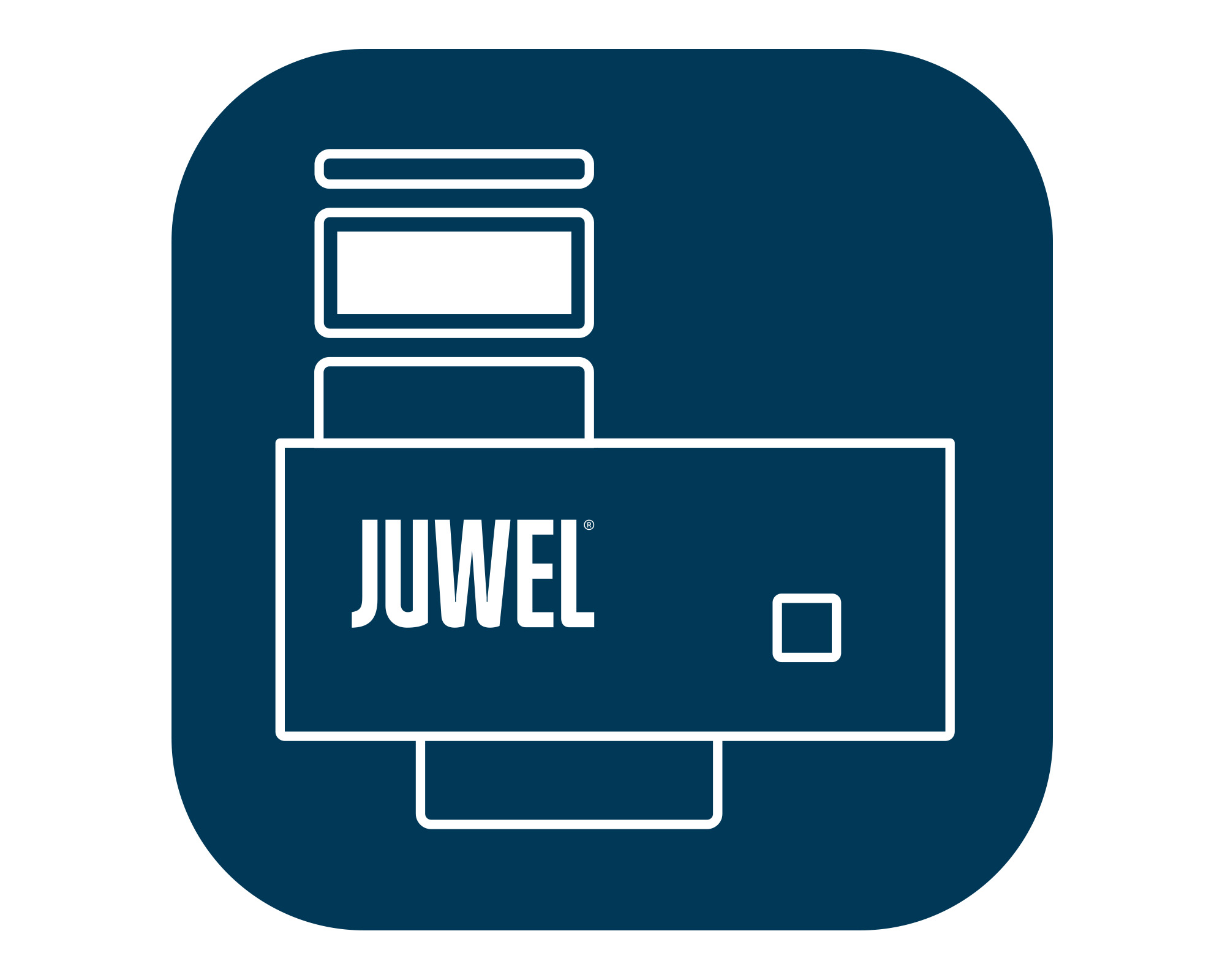
Lo SmartFeed AppControl è dotato di un'estensione della camera del cibo, che consente periodi di alimentazione più lunghi. I tuoi pesci saranno ben curati anche durante lunghe assenze.
Pronto all'uso
Include tutto il necessario per il funzionamento immediato, inclusi un cavo USB-C e un alimentatore.


Dati tecnici
-
N. prodotto
89030
-
Lunghezza cavo
236 cm
-
Incl.
USB-C Cable & Power Adapter
-
Compatibile con
Granulate & Flake Food
Domande e risposte
-
Checklist: Connecting your smart device to Wi-Fi (2.4 GHz, 802.11 b/g/n)
This checklist will help you successfully connect your smart device to your Wi-Fi network.
The device supports 2.4 GHz and the Wi-Fi protocols 802.11 b/g/n. Please go through the following
steps one by one.
- Use 2.4 GHz only: The device works exclusively on the 2.4 GHz band. Please disable 5 GHz during setup or create a separate 2.4 GHz network (e.g. “WLAN_24”).
- Enable Wi-Fi mode b/g/n: The device requires 802.11b mode. Please make sure your router is set to b/g/n mixed and not to “n-only”.
- Check the Wi-Fi channel: Many devices support only channels 1–11. Set the channel manually to 1, 6, or 11.
- Check the Wi-Fi password: The password must be between 8 and 63 characters long. Avoid special characters (ä, ö, ü, ß, €, spaces at the beginning or end) and use only letters and numbers.
- Wi-Fi name (SSID): Avoid special characters and emojis in the Wi-Fi name. The SSID must not be hidden.
- Router security: Enabled: WPA2-PSK (AES or TKIP/AES). Not enabled: WPA3-only, “PMF required”, MAC filtering, client isolation, or a guest network with isolation.
- Mesh / repeater: Connect the device directly to the main router. Disable repeaters or mesh nodes during setup.
- Enable DHCP: Make sure DHCP is enabled and that there are enough free IP addresses available.
- Smartphone settings: During setup, turn off mobile data and VPN, enable location services, and stay close to the router.
Note: The device transmits with +20 dBm output power in 802.11b mode. A stable
connection is only guaranteed if the router meets the conditions listed above. -
In factory default mode: After connecting the device to the power supply, it automatically enters pairing mode (LED signal: short, short, long). Now open the MyJUWEL App and follow the instructions for setup.
If the LED signal does not appear, you can manually activate pairing mode by performing a factory reset (see above).
Next, select your 2.4 GHz Wi-Fi network, enter the Wi-Fi password, and make sure you are within range of your router.
The connection is successful when the blue LED lights up continuously. -
Yes, a smartphone is required to operate the SmartFeed AppControl. Setup and operation are carried out via the MyJUWEL App, which must be installed on an Apple iOS or Android device. The app guides you step by step through the setup and allows for intuitive control.
Please note: To connect with the MyJUWEL App, a Wi-Fi network operating at 2.4 GHz or dual-band 2.4/5 GHz is required. A mobile hotspot is not sufficient for this. -
Please make sure that both Bluetooth and location services are enabled on your smartphone.
Important: Even if location access has already been granted in the app, the location service must also be activated in your phone’s system settings. Your location is not stored – it is only required to detect new devices within your network.
For a stable connection, we recommend placing the SmartFeed AppControl close to your router during setup. -
The SmartFeed AppControl operates exclusively on the 2.4 GHz frequency band.
Please ensure that your router is running in 2.4 GHz mode or dual-band mode (2.4 / 5 GHz). -
If your SmartFeed AppControl is correctly set up but still appears as “offline” in the app, this may have the following causes:
- The device cannot connect to your Wi-Fi or is out of range. In this case, the blue LED flashes briefly at regular intervals.
Solution:
- Restore factory settings:
Press and hold the control button for at least 10 seconds within 30 seconds after connecting the device to power.
The green and blue LEDs will flash rapidly – the device is now in pairing mode. Start the setup process in the app again.- Activate Bluetooth:
Make sure Bluetooth is enabled on your smartphone.
- Keep devices close together:
Ensure that your smartphone and the SmartFeed AppControl are close to each other during setup.
-
- Blue flashing (short, short, long): Pairing mode active
- Blue flashing regularly: Connecting to Wi-Fi
- Blue continuously on: Wi-Fi connection successful
- Green continuously on: Normal operation, feed chamber sufficiently filled
- Green flashing (1 second): Low feed level
- Green flashing rapidly: Mechanical error (e.g. jammed feed screw)
-
Disconnect the device from the power supply before cleaning.
Use a soft cloth and lukewarm water – do not use harsh cleaning agents.
We recommend checking the SmartFeed AppControl for dirt about every four weeks and cleaning it if necessary using the included cleaning brush. This ensures hygienic and reliable feeding. -
On the device:
Briefly press the control button – the device will feed automatically using the preset amount (⅛). You can adjust the amount in the app.Via the app:
Start the feeding manually and conveniently using the MyJUWEL App – with your individually set feed quantity.Using voice command:
Use voice control via Amazon Alexa or Google Assistant with the command:
“Start feeding”
To do so, voice control must first be activated in the MyJUWEL App. -
The SmartFeed 2.0 is programmed directly on the device and is ideal if you prefer simple and straightforward operation. You can schedule up to three feedings per day with individually adjustable portion sizes and intervals of 24, 48, or 72 hours.
The SmartFeed AppControl is the logical evolution of the SmartFeed 2.0 and is fully controlled via the MyJUWEL App. This gives you complete control over feeding your fish – anytime and anywhere – conveniently via your smartphone.
With the MyJUWEL App, you can schedule up to twelve feedings per day, adjust the feeding quantity in eight levels, and also feed manually. All settings can be changed flexibly – no matter where you are. Additionally, you’ll receive notifications when the feed level is low – so your fish are always reliably supplied.Both models come with interchangeable feed screws for optimal dispensing of different types of food.
-
Yes, in order for the MyJUWEL App to correctly detect and connect to your SmartFeed AppControl, location data must be enabled.
Don’t worry: this does not involve GPS data – your actual location is not being recorded.
Wi-Fi devices communicate via the names of nearby networks. According to legal requirements, this network information is considered location data because it could theoretically indicate your position. This is why the system is required to display a corresponding message.
Important to know: This data is not transmitted to our servers. It is used exclusively to enable the connection between your smartphone and the device. -
How do the smart devices behave in the event of a power outage or internet outage?
The behavior of our smart devices depends on the type of outage:
a) Power outage – power and internet are available again afterwards
As soon as power is restored and the router has re-established an active internet connection, the devices automatically reconnect to the Wi-Fi.
The current time is synchronized correctly, and all saved programs continue to run as usual without any time shift.
b) Power outage – power is back, but no internet is available
If power is available but the router has no internet connection, the devices cannot retrieve the current time.
In this case, they start internally at 00:00 from the moment power is supplied. The programs will still run, but with a time offset because the correct time is missing.
As soon as the internet connection is restored, the devices automatically re-synchronize.
c) No power outage – only Wi-Fi or internet fails
If only the Wi-Fi or internet connection fails, the devices remain in operation.
Since the time is already known, the saved programs continue to run correctly and without interruption. An internet connection is not required for this. -
Press and hold the control button for at least 10 seconds within 30 seconds of connecting the device to a power source.
If the reset was successful, the green and blue LEDs will flash quickly three times in succession. -
Yes, after setup in the MyJUWEL App, you can control your SmartFeed AppControl using Amazon Alexa or Google Assistant.
Available voice commands:
- “Start feeding” – immediately starts feeding with the predefined amount
- “Set feed quantity to X (1–8)” – adjusts the feed quantity
Note: Voice commands are currently available in German and English.